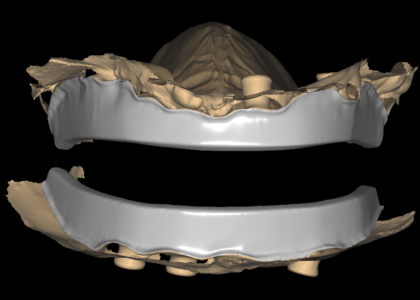

Margin design in CAD decides whether a crown and bridge case seats on the first try. When it does not, the case comes back as a remake. That failure rarely starts at the mill. Usually the file was signed off with a margin line that nobody traced twice. A remake costs days of lost production. Careful margin work costs minutes. Because of that gap, the cheapest place to catch trouble is inside the design file, before anything gets cut.
Seven checks cover most of the risk, and each one takes well under a minute on an average unit. The order below follows the way a case naturally moves through the studio: scan, trace, set parameters, verify, document.
Why margin design in CAD drives your remake rate
Margin design in CAD starts with the seam where the restoration meets the tooth. It is also the only part of a design that a patient or a dentist can feel with a probe. Every other surface rewards good scanning and sensible material choice. The margin rewards attention. Consequently, a design that looks excellent in a screenshot can still fail. The margin line may run half a millimetre long. It may drift into a soft-tissue shadow. Or it may step off the preparation finish line.
On top of that, the margin is a shared responsibility. A clinician prepares the tooth, a scanner captures it, and a designer interprets what the scanner captured. When any of those three steps loses information, the loss shows up at the margin first. As a result, experienced designers treat margin work as a checkpoint rather than a formality. They trace the line, zoom in, compare it against the opposing arch and question anything that looks too convenient.
Seven checks for margin design in CAD
Work through this list in order. Skipping ahead usually means polishing a margin line that sits on weak data, which wastes the effort twice over.
1. Scan quality right at the margin
First, look at the raw scan along the finish line. A scan can be clean across the occlusal surface and still be noisy at the margin. There, the scanner has less geometry to lock onto. Furthermore, a shiny or slightly bleeding margin often produces a hole instead of a wall. When the data is thin, do not guess. Ask for a second scan or a margin-area scan, and note the request against the case.
2. Margin line placement on the finish line
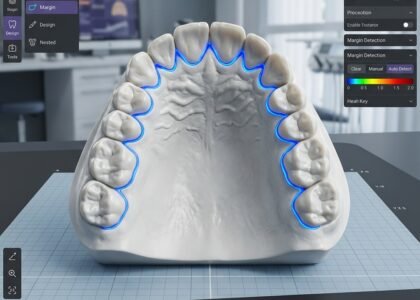
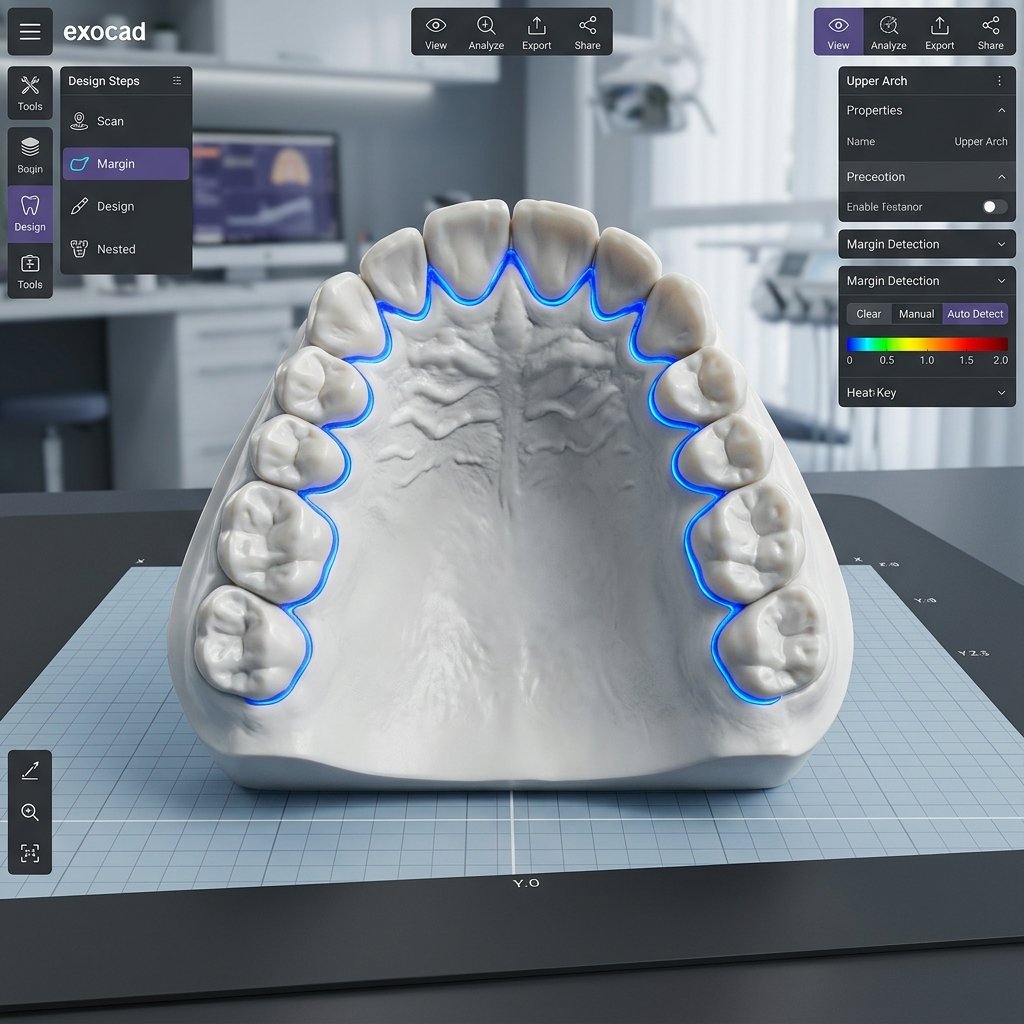
Next, trace the margin where the finish line actually runs. In practice, most errors here come from two habits. One is stopping the line short of the visible edge. The other is running it past the edge onto the axial wall. Meanwhile, subgingival margins make both mistakes far easier to commit. Zoom in on every section. When a segment is unreadable, mark it for confirmation instead of closing the gap with a smooth curve. That restraint matters more than speed. The finish line defines how the restoration seats, as set out in the standard description of a crown preparation.
3. Geometry matched to the material
A chamfer, a shoulder and a feather edge behave differently once they reach the mill. Zirconia wants support and punishes thin edges. Lithium disilicate wants a clean, well-defined finish. Therefore, the geometry in the file has to match the material your lab has already chosen. It does not work the other way round. Draw zirconia and PFM with the same margin profile, and you will get two different results. Only one of them will fit.
4. Cement gap and the margin zone
Spacer settings deserve their own check, because a single number controls two opposite outcomes. When the gap is too tight, the crown will not seat. The dentist then grinds the inside, which ruins the fit. When it is too loose, the crown seats but feels sloppy and the cement line becomes visible. For that reason, most labs run a tight margin zone with a wider body. Confirm those values against your standing protocol, particularly when a case switches material.
5. Undercuts and the path of insertion
Beyond that, rotate the design against the scan and look for undercuts near the margin. A small undercut close to the finish line hides well in a static view. It is also difficult to mill cleanly. In addition, any undercut forces the milling strategy to compromise somewhere else. When a case shows one, the usual fix is a slight shift of the insertion axis. Sometimes it means asking the clinician for a small adjustment. Either way, that decision belongs before milling, not after.
6. Contacts and occlusion against the opposing arch
Margins do not fail in isolation. After that, check the proximal contacts and the occlusal clearance against the opposing scan. A crown with a perfect margin and a heavy occlusion still comes back as a remake. The dentist has to reduce it chairside, and that often thins the material near the margin. Keep the contact gauge consistent with your lab’s preference and leave enough clearance for the chosen material.
7. Documentation before release
Finally, record what you checked. Write a short note with margin line position, spacer values, contact opening and any flagged section. A technician can then verify the file in two minutes. Therefore, if a case does come back, the note shows exactly which decision to revisit. It also tells your design partner what to change next time.

CAD margin settings behind most crown and bridge remakes
Three settings account for a large share of the margin-related rework we see. First, spacer values copied from an older case and never rechecked. Second, margin line endpoints that stop a fraction short of the finish line. That leaves a ledge the cement cannot fill. Third, contacts opened too far, which makes the restoration feel loose and invites chairside adjustment close to the margin. Each of these is cheap to correct in the software. On the other hand, each one gets expensive once the crown is milled, stained and shipped.
Automation helps with the routine and struggles with the difficult cases. An algorithm finds a finish line by looking for a sharp change in angle and in surface direction. Unfortunately, a polished preparation, a composite filling nearby or a shadowed subgingival area all blur that signal. Consequently, an auto-traced line is a starting point rather than an answer. A designer who zooms in, follows the edge and flags the uncertain sections will beat automation. That advantage shows up on exactly the cases where remakes are most likely. In that sense, margin design in CAD stays a craft decision, not a button press.

How to brief a design partner on margin design in CAD
Good results depend as much on the brief as on the designer. Send your material, margin preference, spacer values, contact gauge and any known difficulty with the preparation. Once those sit on your account, every future case starts from your protocol instead of a default. In addition, mention the deadline in the brief, so the schedule gets confirmed before design begins rather than after. A short, specific brief removes most revision cycles on its own.
Software will not close the last gap either. Beyond the checks above, our crown & bridge design service covers margins, contacts and occlusion on every unit. Each case gets a senior review before delivery, and standard turnaround is 12–24 hours. If you would rather see the standard first, browse the full range of design services. Or go straight to the contact page, and we will confirm the design path the same working day.
Pick a case from this week and send it in with your margin specification. The design file comes back within 12–24 hours. You also get the documentation you need to check every decision behind it. Then you can judge the margins with your own eyes. That is the only test that matters for margin design in CAD.